

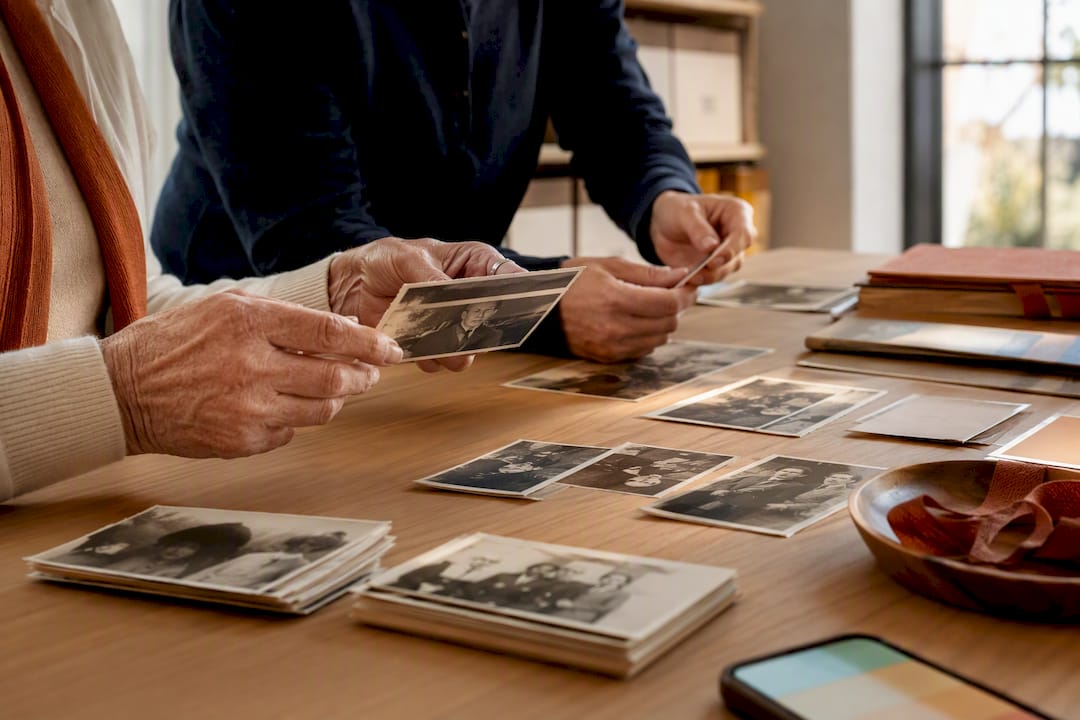
When family photos are scattered across phones, hard drives, cloud accounts, and old envelopes, a clever filename is not enough. You need a sequence: gather everything, review duplicates, choose one organizing principle, and then record the context. The result is not merely a tidy library. It is an archive in which another relative can find the people, places, and stories without relying on your memory.
Table of contents
- Define what a useful archive must do
- 1. Protect originals and create an intake folder
- 2. Inventory the collection and review duplicates
- 3. Choose one main organizing principle
- 4. Write filenames for people, not software
- 5. Add captions and portable context
- 6. Identify unknown people with relatives
- 7. Scan paper photographs deliberately
- 8. Turn selected pictures into stories
- 9. Keep the archive current
- Frequently asked questions
- Sources
Define what a useful archive must do
Before you organize family photos, write three retrieval tests. For example: “Find every picture from Maria’s first day of school,” “Show photos taken in Chicago around 1970,” and “Find the portrait where Grandpa is wearing his bakery apron.” If your system can answer those questions, it works. If it depends on you remembering where a picture was hidden, it is not yet a family archive.
A durable system separates four jobs:
- Preserve the file: Where is the unchanged original?
- Find the image: Which date or event would someone search for?
- Identify the people: Who appears, and how certain is that identification?
- Understand the meaning: Why does the photograph matter to the family?
A photo app can help with discovery. Folders and plain-language filenames keep the collection understandable after you change software. Captions, voices, and stories preserve what the pixels alone cannot explain.
1. Protect originals and create an intake folder
Do not begin by renaming or deleting. First copy every source into a common workspace: phone exports, memory cards, messaging downloads, cloud folders, and existing scans. Leave the source collections untouched while you verify the copies.
Create a folder such as Family-Photos/00_Inbox, then record where each batch came from:
2026-09_Sabines-iPhone2026-09_Grandpas-drive2026-09_School-days-album
This date records the import, not necessarily when the photograph was taken. That distinction prevents an unknown historical date from turning into a false fact. Open samples from every source folder before reorganizing the working copy.
If you do not yet have an independent backup, make one before a large cleanup. Our guide to the best way to store photos long term covers synchronization, backup, and recovery. Here, backup is the safety boundary; organization is the main task.
2. Inventory the collection and review duplicates
Record the scale first. How many files are in each location? Which folders already have a useful structure? Which devices or relatives have not contributed yet? A short inventory prevents an entire source from being forgotten.
There are two different kinds of duplicates:
- Byte-identical files: The contents match exactly. A tool can identify these reliably with a file hash.
- Visually similar images: One picture may be cropped, compressed, edited, or photographed from a print more than once. A person must decide which version is best or most meaningful.
Let software group similar images, but do not let it make the final deletion decision. The largest file is not automatically the best; a blurry original can be bigger than a strong edited copy. Move deletion candidates to a temporary review folder. Remove them only after a second review and a successful backup.
3. Choose one main organizing principle
For most families, the clearest approach is time as the folder structure and people as tags. A group photograph then exists once even if five relatives appear in it.
Family-Photos/
  1960-1969/
    1968-circa_Marias-birthday-Chicago/
  1970-1979/
    1974_Lake-vacation/
  2020-2029/
    2026-08-17_Family-reunion-Boston/
  Date-unknown/
Year folders are enough for a small collection. Add events or months only when a folder becomes difficult to scan. Avoid parallel top-level folders for People, Places, Celebrations, and Vacations. One group photo belongs in all four, which soon creates competing copies.
Albums can provide additional views without duplicating the underlying file. “Grandma’s childhood” can be a collection assembled from tags, while the original stays in its chronological home.
4. Write filenames for people, not software
Camera names such as IMG_4827.JPG are unique but not informative. A useful pattern is:
YYYY-MM-DD_place-event_people_sequence.ext
Examples:
2026-08-17_Boston-family-reunion_001.heic1968-circa_Chicago-Marias-birthday_001.jpgdate-unknown_family-home-Anna-Paul_001.tif
Only record what you know. 1968-circa or 1960s is more honest than a fabricated January 1. Use consistent spellings for names and places. A small naming-rules.txt file can explain whether you include maiden names, initials, or diacritics.
Sequence numbers keep a burst or album page together. Preserve the old filename in a mapping sheet if it might help trace the source. Never run a bulk rename on the only copy. Test the rule on ten copied files first.
5. Add captions and portable context
Folders answer “roughly when?” An important photograph often needs more:
- Who: full names and relevant relationships
- Where: place, building, or region
- When: exact or estimated date, with uncertainty shown
- What: occasion or visible situation
- Why: the memory that makes the image significant
- Source: who identified the people or event
For example: “Maria Novak, left, and her brother Paul outside their parents’ bakery in Chicago, probably summer 1968. Identified by Maria on May 12, 2026.” The final sentence matters. A future reader can distinguish firsthand knowledge from a guess.
EXIF usually holds technical data such as camera model and capture time. IPTC or XMP fields can carry names, keywords, and captions. Not every app retains every field during editing or export. Apple Photos, for example, can export unmodified originals and write IPTC information into a separate XMP file. Test a few images in your own workflow, and keep essential context in a simple spreadsheet or text file as well.
6. Identify unknown people with relatives
Face recognition is a discovery aid, not proof. Google notes in its guidance on face groups in Google Photos that suggestions can be missing or incorrect. Confirm historical identities with someone who knew the family or place.
For a manageable first session, choose perhaps 15 to 25 pictures. This is not a fixed limit. The goal is a conversation, not a test. Begin with “What do you notice in this picture?” and then ask:
- Who might be standing beside you?
- Where was this taken?
- What clues suggest the approximate date?
- What happened just before or after this moment?
- Who else could confirm the identification?
Record disagreement instead of forcing a conclusion. “Anna remembers 1967; Paul thinks 1969” is useful evidence. A calendar, letter, or handwritten note may settle it later.
7. Scan paper photographs deliberately
You do not have to scan every album first. Prioritize fading, damaged, unique, or story-rich photographs. Clean the scanner glass, capture the complete image, and preserve a border or a separate view of the back when it contains writing.
The Library of Congress recommends in its introduction to scanning personal collections keeping a high-quality master, often TIFF, alongside a smaller JPEG access copy. There is no single magic resolution for every print. Choose enough detail to read handwriting and faces clearly, then inspect several scans at full size before processing an entire album.
Pair front and back as ..._front.tif and ..._back.tif. Restored or colorized images should remain additional derivatives while the unchanged scan master stays intact.
8. Turn selected pictures into stories
A perfectly sorted photograph is not yet a story. The most valuable family pictures answer something a file system cannot: Why was this moment remembered?
As a starting point, choose three to five images from one period and invite the person shown to tell a short memory. If one photograph starts a long conversation, one is enough. Useful prompts include:
- What was different about this day?
- Who is missing from the frame but mattered to the moment?
- What would you tell someone who has never seen this place?
- Which sounds, smells, or phrases do you associate with it?
FamilyStories adds this second layer. Selected photos can sit with guided questions and written or spoken answers, so the family preserves the voice and context that folders cannot hold. It does not replace your complete photo library or its backup. It makes the most meaningful images understandable within the family story.
9. Keep the archive current
The system works only if the inbox does not become permanent storage. One possible rhythm is 20 minutes each month, but choose any schedule your family will actually keep.
- Collect new pictures in
00_Inbox. - Mark obvious mistakes and reviewed duplicates.
- Assign the remaining files to a year or event.
- Give the important ones clear names.
- Add people and context to photographs that carry a story.
- Back up the changes and reopen a few files as a check.
Keep a short “Questions to resolve” list for unknown faces, conflicting dates, and missing places. You can continue organizing without guessing, and the next family conversation already has a useful agenda.
Frequently asked questions
Use date or event for folders and use tags, face groups, or albums for people. A group photo then remains one file while still appearing under every person shown.
Place them in a Date-unknown folder and note clues from clothing, buildings, ages, or the photographic material. If you only know a decade, write 1960s or circa 1968 rather than inventing a day.
Try date_place-event_people_sequence. Keep the order and spelling consistent. Test bulk renaming with copies and preserve old names in a mapping sheet when they may matter.
It can group similar faces and speed up discovery, but it can also miss or misidentify people. Confirm historical identities manually and record who supplied the identification.
No. A high-quality TIFF master is useful for especially important scans, while JPEG is convenient for everyday access. A high-quality JPEG may be practical for a large ordinary collection. Complete capture, inspection, context, and independent backups matter more than the label alone.
Work from copies, move deletion candidates into a review folder, and keep an independent backup. Reopen samples after major changes. Do not erase the source collection until both the organization and the backup have been tested.
Keep your family's stories, in their own voices
FamilyStories is the iPhone and iPad app where your family collects life stories: with personal questions, real voices and photos, kept private, and in the end a printed book.
- Personal questions by chapter of life
- Spoken words become text automatically
- The original voice is always kept
- Photos right next to their story
- A family circle for up to 10 people
- Answer without the app, by link
- Weekly reminders to keep telling
- Music and nature sounds as you talk
- A family tree for the whole family
- Save it as a PDF or a Word file
- A printed book, shipped worldwide
- Private and end-to-end encrypted
- Download the app
Get FamilyStories from the App Store on your iPhone or iPad.
- Pick the questions
Tell the app a little about the person, and it picks fitting questions.
- Invite your family
Send your family a link. They answer in the app or in their browser.