

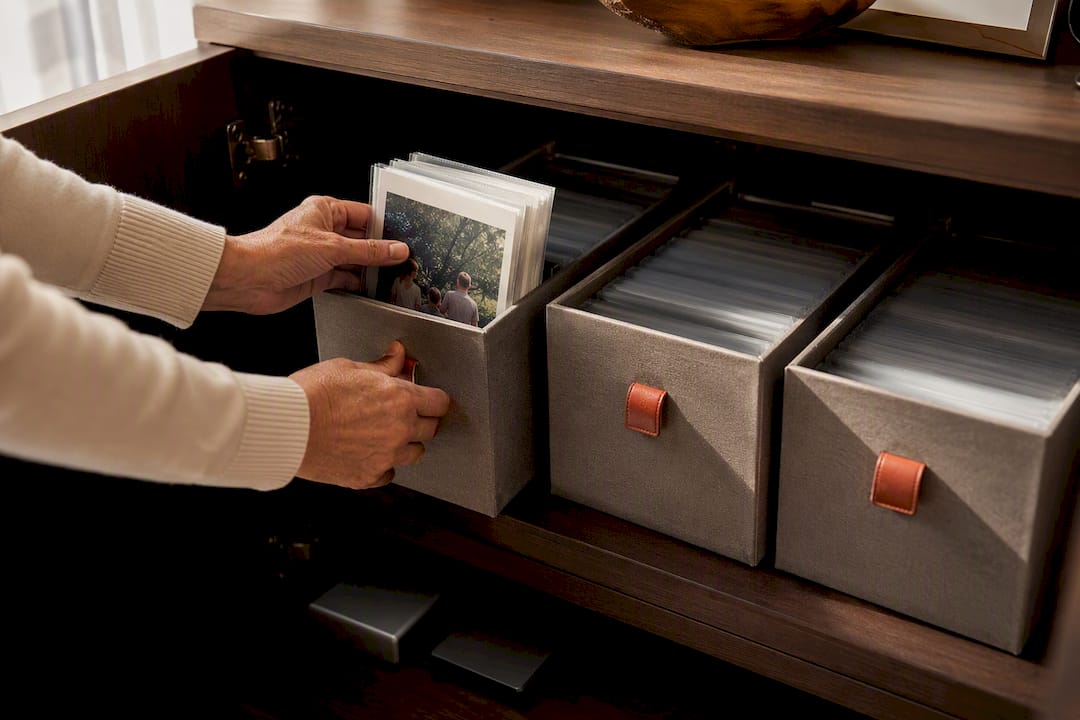
If your phone disappeared today, which family photos could you recover tomorrow? Cloud sync feels reassuring, but it is not a complete backup plan. A deletion, damaged file, or locked account can affect every connected device. The 3-2-1 rule separates your copies so no single device failure, storage location, or account problem can take down the whole archive.
This guide takes you from scattered photo folders to a backup you have actually restored. You do not need a home server or an IT background.
What 3-2-1 means for a family photo archive
CISA defines the pattern in three numbers: three copies, two media types, and one copy offsite. IONOS offers a practical introduction to the same 3-2-1 approach. A family setup can be:
- Working copy: the organized photo library on a computer or phone.
- Local backup: an external drive that is disconnected after the backup.
- Offsite backup: encrypted cloud storage or a second drive kept elsewhere.
The copies need independent failure points. Three folders on one drive are still one drive. Mirrored drives in a NAS can help when one disk fails, but they do not create a second location.
Map your archive in 15 minutes
Before buying anything, list where your photos live today:
| Photo source | Approximate size | Automatic backup? | Last separate backup | Owner |
|---|---|---|---|---|
| Two phones | 180 GB | partly | never | Anna |
| Family laptop | 55 GB | no | March | Karim |
| Old scans | 15 GB | no | August | Anna |
Add the sizes and allow at least 25 percent free space. A 250 GB library needs roughly 320 GB or more on every full backup destination. Decide whether videos, edited versions, and scans belong in the set. This catches the common problem of a backup that quietly contains only part of the archive.
Build the three copies step by step
1. Choose one complete working library
Pick one place that should contain the full collection. New phone photos can arrive there automatically, but the structure still needs to be understandable. If the library is scattered, first use our guide to organizing family photos digitally. A clear folder structure and descriptions preserve the historical context without forcing you to rename every file.
2. Automate a local backup
Connect an external drive with enough capacity and use the backup tool built into your computer. Choose version history when available so an accidental edit does not immediately replace the last good copy. Disconnect the drive afterward. The UK NCSC warns that malware can also affect storage that remains attached.
3. Keep one copy offsite
The third copy should survive a fire, theft, or water damage at home. Encrypted cloud backup and a second drive at a trusted relative's home are both workable. The important test is not the brand. It is whether the copy is complete, current, and separated from the first two failure points.
Sync is not automatically a backup
Sync keeps files identical across devices. That is convenient, but it can also copy deletions and damaged files everywhere. A backup preserves at least one earlier, recoverable state outside that live synchronization.
Ask three questions about your cloud service:
- Does it keep deleted files or earlier versions, and for how long?
- Can you download all original files in one operation?
- Is one backup still reachable if the main account is locked?
If any answer is unclear, treat the service as the working library and add an independent backup.
A complete example for 250 GB of family photos
Suppose 250 GB sits across a laptop and two phones. A simple resilient setup could be:
| Layer | Setup | Protects against | Routine |
|---|---|---|---|
| Working copy | laptop library with automatic phone uploads | loss of one phone | check new uploads weekly |
| Local copy | 1 TB drive with version history, then disconnected | laptop failure or accidental deletion | back up monthly, open files quarterly |
| Offsite copy | encrypted cloud backup | damage or theft at home | check status monthly, restore yearly |
This is a model, not a product prescription. Each layer protects against a different kind of failure. If the laptop and backup drive always travel in the same bag, they share the same risk.
Run the restore test most people skip
A green check in backup software proves that a process reported success. The proof that matters is a restore. The NCSC specifically recommends checking that important files are present and that you know how to restore them.
Once each quarter:
- Select ten photos from different years, one video, and one scan.
- Restore them into an empty test folder, never over the originals.
- Open every file and inspect the date, size, and description on a few samples.
- Record the date, source, result, and time needed.
- Fix missing folders immediately, then repeat the test.
Once a year, pretend the working library is unavailable. If you can start again with only the offsite copy and your written instructions, the plan is useful.
Keep maintenance simple and predictable
- Weekly: confirm that recent phone photos arrived.
- Monthly: update local and offsite copies.
- Quarterly: restore a mixed sample.
- Yearly: review storage locations, access, and capacity.
- When changing devices: retire the old copy only after a successful restore.
Germany's BSI recommends a recurring schedule because important data keeps changing. Test older media occasionally, and do not rely on a single USB stick for long-term storage.
Make the plan usable by one other person
A family archive should not depend on one person's memory. Create a one-page map with the three storage locations, the responsible person, the latest successful restore test, the process for adding new photos, and the secure place where access instructions are kept. Do not put plain-text passwords on this sheet.
Ask a trusted relative to find one test photo using only the map. If they cannot, improve the instructions while you are available to explain them.
Preserve the story as well as the file
A perfect backup cannot tell future relatives who appears in a photo or why the moment mattered. The Library of Congress includes descriptions for digital photos in its personal archiving guidance. For your most important selection, record the people, place, approximate year, and occasion, along with the context that turns stored images into family memories.
FamilyStories lets a family connect photos to guided questions, written or voice answers, and people in a private family tree. It does not replace your 3-2-1 backup. It solves the other half of the task: keeping a file understandable as well as available. For any cloud sharing, limit access and secure the account, in line with the BSI's cloud-safety guidance.
Frequently asked questions
Yes, if it holds the full originals and you can restore them. A synchronized cloud library should still have an independent, versioned backup.
No. They create extra copies but share one location. Keep at least one copy somewhere else.
No. A computer, external drive, and cloud backup can form a sound system. A NAS is more useful for very large libraries or several active contributors.
Choose the interval by how much you could accept losing. Phone uploads can run daily; update a disconnected local backup at least monthly. Back up immediately after an important celebration or large scanning session.
Only a successful restore proves it. Regularly restore a mixed sample into an empty folder and open the files.
Keep your family's stories, in their own voices
FamilyStories is the iPhone and iPad app where your family collects life stories: with personal questions, real voices and photos, kept private, and in the end a printed book.
- Personal questions by chapter of life
- Spoken words become text automatically
- The original voice is always kept
- Photos right next to their story
- A family circle for up to 10 people
- Answer without the app, by link
- Weekly reminders to keep telling
- Music and nature sounds as you talk
- A family tree for the whole family
- Save it as a PDF or a Word file
- A printed book, shipped worldwide
- Private and end-to-end encrypted
- Download the app
Get FamilyStories from the App Store on your iPhone or iPad.
- Pick the questions
Tell the app a little about the person, and it picks fitting questions.
- Invite your family
Send your family a link. They answer in the app or in their browser.