
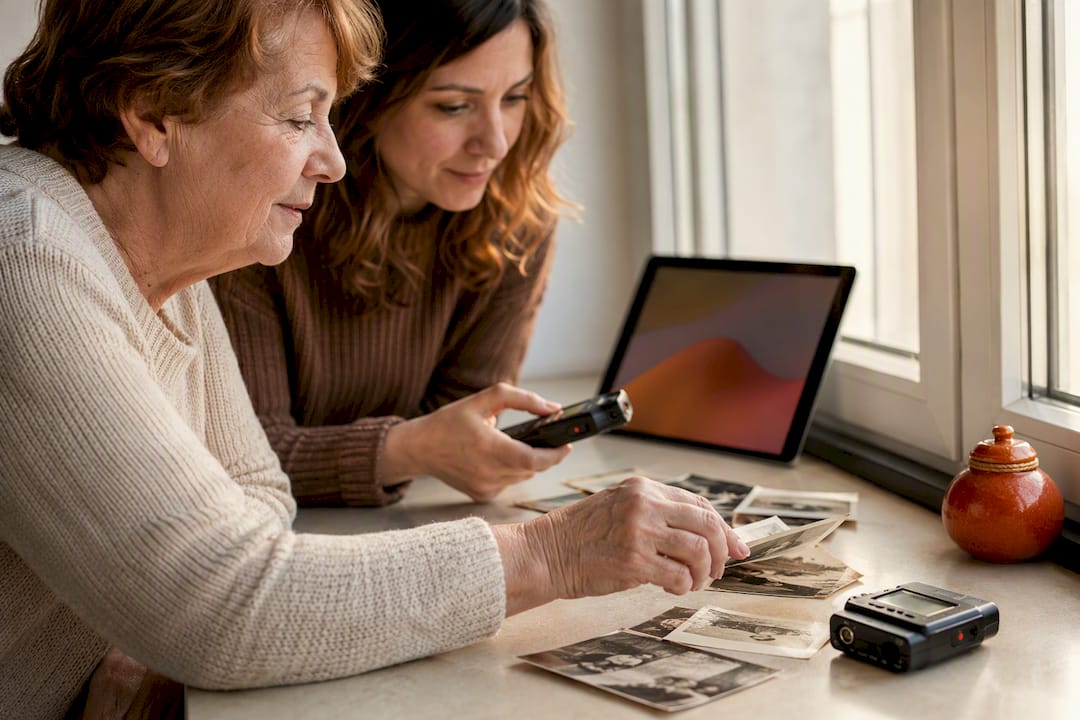
A photograph shows what a moment looked like. A voice explains why it mattered. Combining a photo with audio can therefore be more than a small slideshow: it can preserve who is pictured, what was happening, and how the memory felt to the person telling it.
What you are actually making
A short clip needs only an image, an audio file, and an export. A useful family memory needs a little more: names, place, approximate time, and a connection to related stories. That small layer of context is what makes the result understandable years from now.
Before you start: choose one moment
Do not begin with an entire holiday album. Start with one photo of a first home and the question, ‘What made this place feel like home?’ A precise prompt gives the image and voice something meaningful to explain together.
Combine a photo and audio in 5 steps
1. Open a simple editor
Choose an app or browser editor with a visual timeline. Start a new landscape or portrait project according to where the clip will be watched.
2. Import the photo and recording
Add the chosen photo and full voice recording. Put the photo on the visual track and the recording on the audio track. Check that the voice is audible from the beginning.
3. Match the photo length to the voice
Extend the photo for at least as long as the recording. With more than one image, split the visual track only where the speaker changes place, time, or person.
4. Trim the beginning and end gently
Remove only pauses caused by starting or stopping the recording. Keep sentences, breaths, and small laughs when they belong to the story. Listen once with headphones and once without.
5. Export an MP4 and check it
Export a test MP4 and open it on the device where it will be watched. Check the crop, volume, and first and final sentence before sharing the finished file.
Make the clip understandable as a memory
1. Name the moment in one sentence
Write a working line such as, ‘Grandad explains why the old kitchen chair always stood by the window.’ It keeps the image and recording focused on the same memory.
2. Prepare the photo and voice
Place the best photo beside the full recording. If more images belong, order them by the story rather than by visual appeal. Note names, place, and approximate year while someone can still confirm them.
3. Listen all the way through first
On the first listen, mark the opening, one specific turn in the story, and the close. Only then decide where another image genuinely helps. That prevents frantic image changes.
4. Let the voice lead the transitions
Keep an image on screen while the speaker remains in the same scene. When the story moves from an old flat to a move, the image can move too. A little silence at the beginning or end gives a voice room.
5. Save the context alongside the result
Use a name people can understand and record who is speaking. A clip without that note quickly becomes a file nobody can place. Keep the original photo and original recording as well.
Slideshow or family archive: what do you need it to do?
A slideshow works well when you want to show or send one moment. A family archive works better when relatives may add their own perspective or when the recording needs to be found without opening a video. They solve different, complementary jobs.
Turn a clip into a memory you can find again
If you want more than a clip to send, FamilyStories supports the other job: a question, answer, transcript, original voice, and related photos stay together with one story. FamilyStories is not a video editor. It helps future readers understand who is in the photo, what happened, and who told the story.
Frequently asked questions
Yes. For a first clip, one clear voice is usually stronger than many tiny excerpts. Keep additional voices under clear names so they can still be connected to the same memory.
Start with an answer of one to three minutes. It is long enough for one real moment without becoming hard to follow. Longer conversations are easier to split into separate memories.
No. One strong photo and a precise voice can say more than ten unconnected images. Add another only when it makes a person, place, or change in the story clearer.
Record the speaker, the people in the photo, place, approximate year, and one phrase about the scene. If you are unsure, ‘probably’ is more useful than inventing an exact date.
No. A slideshow arranges media for a moment. A family story also records the connection: who speaks, what the voice refers to, and what other memories belong with it.
The retained links below lead to German-language general editing guides for making a clip. They are useful for comparing tools, while this article explains the family-memory context to preserve alongside the result.
Keep your family's stories, in their own voices
FamilyStories is the iPhone and iPad app where your family collects life stories: with personal questions, real voices and photos, kept private, and in the end a printed book.
- Personal questions by chapter of life
- Spoken words become text automatically
- The original voice is always kept
- Photos right next to their story
- A family circle for up to 10 people
- Answer without the app, by link
- Weekly reminders to keep telling
- Music and nature sounds as you talk
- A family tree for the whole family
- Save it as a PDF or a Word file
- A printed book, shipped worldwide
- Private and end-to-end encrypted
- Download the app
Get FamilyStories from the App Store on your iPhone or iPad.
- Pick the questions
Tell the app a little about the person, and it picks fitting questions.
- Invite your family
Send your family a link. They answer in the app or in their browser.